- In your e-mail, open the invitation for the shared folder.

Click on the link for the folder. - You will be prompted to log into Google Drive.

If you already have a Google account, using a different e-mail address, log in and skip to step 5. If you don't have a Google account, click Create an Account. - A form will prompt you for information necessary to create your account.
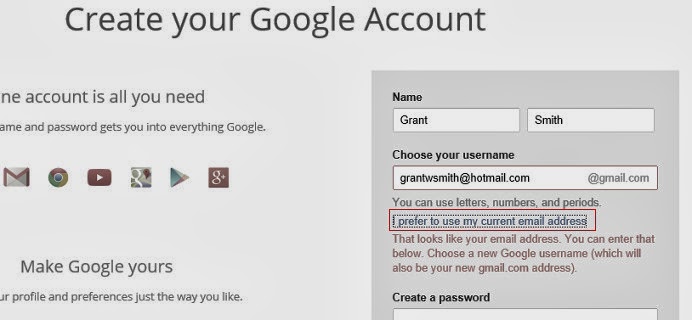
If you want to use your existing non-Google e-mail address, click the link I prefer to use my current email address.
The form will reset and allow you to enter your non-Google e-mail address. - If you are using a non-Google e-mail address, you will need to verify your address before your Google account is created. For some mail providers, Google may send you an e-mail and ask you to click on a link in the message. For others you may be prompted to log into the account in a web page and accept permissions.
After verification is complete, you will be welcomed to your new Google Account.
Click Back to Google Docs. - The folder from the e-mail invitation will display.

Click Add to Drive. - The main page of Google Drive will load. The shared folder should show up underneath My Drive.

You can now access any files in the shared folder.
Monday, January 13, 2014
Accepting a Google Drive Invitation for a Shared Folder
Google Drive is a great tool for sharing files with a group of people, without having to send them as e-mail attachments. If someone shares a Google Drive folder with your non-Google e-mail address, Google will send you an invitation. You can either create a new Google account or log in with an existing Google account, even if it uses an e-mail address different from the one the invitation was sent to.

Sunday, January 12, 2014
Viewing Your lds.org Calendar in iOS
Members of the Church of Jesus Christ of Latter-Day Saints can view their ward's calendar by registering and logging into lds.org. If you have an iOS device, you can also view the calendar in Apple's built-in Calendar app.
- Log into lds.org and go to the calendar.

In the top right corner of the calendar, click on the gear icon. From the drop-down menu, select Sync. - You will see general instructions for syncing the calendar with Google Calendar, Microsoft Outlook, and Apple iCal. Each of these includes the same URL for an iCal version of the calendar. This URL is for your use only. Treat it as a password and do not share it with others.

Copy the URL. You will need to find some way to transfer this to your iOS device. The most common method is to paste it into an e-mail sent to yourself. - On your iOS device, find the URL and copy it. (Tap on the URL and hold. You should see an option to select. After selecting the text, you should see an option to copy. If all else fails, ask a teenager for help.)
- Go to Settings.

Select Mail, Contacts, Calendars. - A list of existing accounts will display.

Select Add Account. - A list of account types will appear.

Select Other. - More options will be listed.

Under Calendars, select Add Subscribed Calendar. - You will be prompted to enter a server.

Paste the URL you copied previously. (To paste, tap in the field. You should see the option to paste.) When finished, tap Next. - After the URL has been verified, additional lines of settings will appear.

You may want to change the Description to make the calendar more easily identifiable in the list of your other calendars. None of the other settings need to be changed. Tap Save. - You will return to your list of accounts. The lds.org calendar will now display under the Subscribed Calendars section.

- Go to the Calendar app.

Tap on Calendars at the bottom of the screen. - A list of your calendars will display.

In the Subscribed section, you should see your lds.org calendar. Don't panic if it doesn't show up right away. Just wait. For whatever reason, it may takes this calendar a while to arrive. Once it displays in the list, you can toggle the display of the calendar on and off by placing or removing the check mark. When finished, tap Done.
The lds.org calendar you see in the iOS Calendar app is a combination of all the lds.org calendars you are subscribed too. On the lds.org web site or in the LDS Tools app, you will see various calendars for the ward and stake, each with a separate color. In the iOS Calendar app, you will see all of them lumped together, with the same color. But you can view it alongside your own personal calendar.
Opening a Shared Google Calendar in iOS
Google Calendar is a great tool for sharing information. In this example, a Google account has been created so a group of people can access a private calendar. Each member of the group is given the username and password so they can view the calendar. If you have an iOS device, you can add this account and view the calendar using Apple's built-in Calendar app. Since you may not want to clutter your calendar with this information all the time, you also need to know how to toggle the display of calendars on and off.
-
On your iOS device, go to Settings.

Select Mail, Contacts, Calendars. - A list of exiting accounts will appear.

Select Add Account. - A list of account types will appear.

Select Google. - You will be prompted for information.

In the Email and Password fields, enter the information you were given. For Name and Description, enter something that will help you distinguish this account from others you have set up on your iOS device. When finished, tap Next. - The next screen allows you to pick which items you want to synchronize to your device.

In this example, only the Calendars is shared. Adjust the sliders to turn off synchronization for Mail, Contacts, and Notes. When finished, tap Save. The account has been added. - To toggle display of calendars, go the Calendar app.

Tap on Calendars. - A list of your calendars will display. If the new calendar does not appear in the list, wait and try again later.

You can toggle the display of calendars by placing or removing the check mark in the first column. When finished, tap Done. - You should now be able to view the newly added calendar.
Friday, December 13, 2013
Cinemark at Highbury Centre

The walls are rising on West Valley City's newest movie theater, the 10-screen Cinemark at Highbury Center. Although it has fewer screens than other new multiplexes, it will likely include one of Cinemark's premium XD auditoriums. The entrance and lobby are at the southwest corner of the building, with the XD auditorium occupying the southeast corner. A central hallway will provide access to the remaining theaters, with the larger auditoriums on the east side. The theater is located directly east of Target, near 2700 South and 5600 West.

West Valley gained a new 15-screen Megaplex Theatre at Valley Fair Mall about this time last year. Combine that with the 15 screens at the Carmike Ritz, four at the Redwood Drive-In (two didn't make the upgrade to digital projection), and the Cinemark Valley Fair Movies 9, and we could 53 movie screens in West Valley by next summer.
More construction photos.
Subscribe to:
Posts (Atom)